
6.1 When to use Detail View
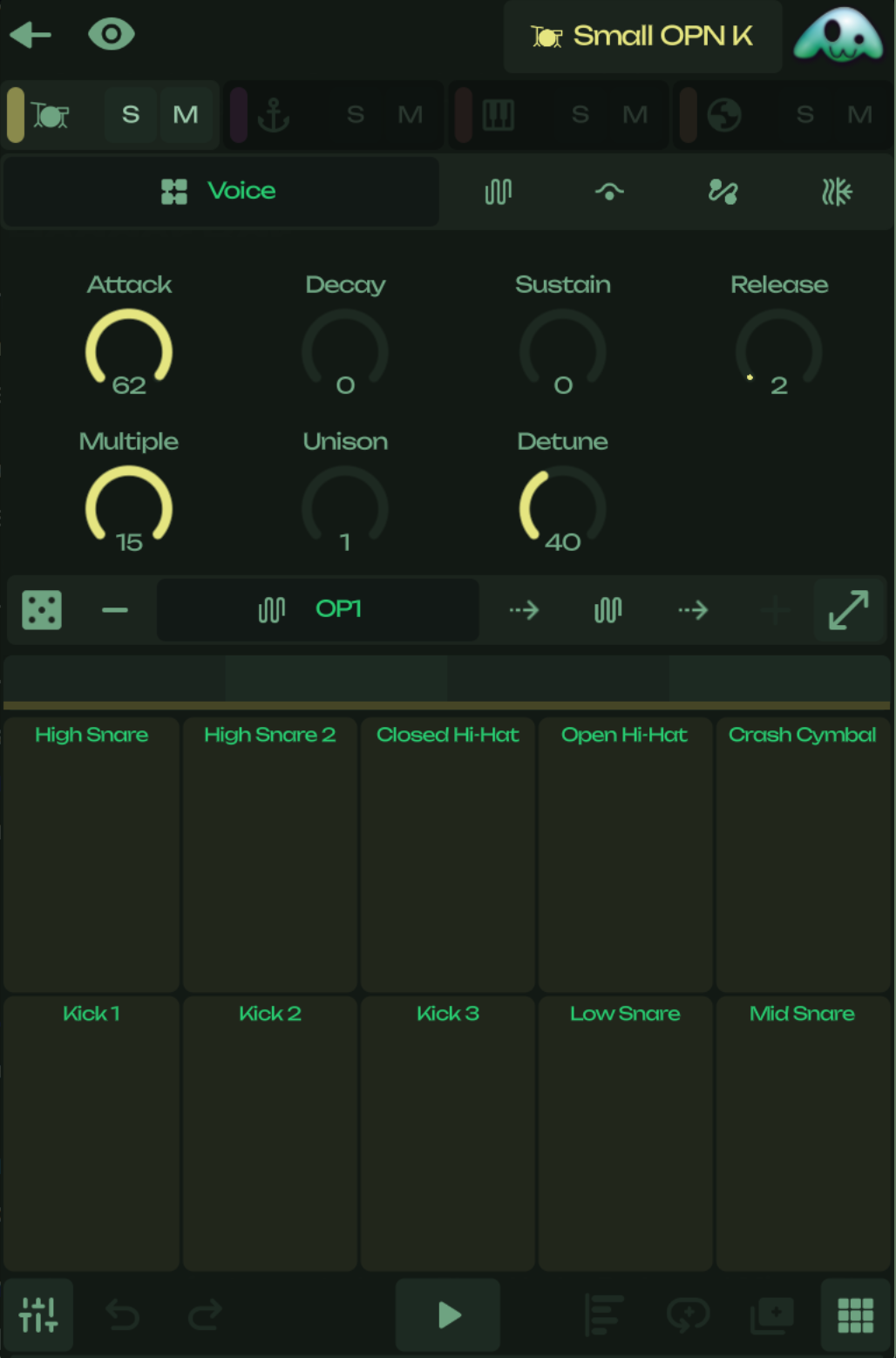
Detail View is Pooly’s deep editing surface for the selected track, clip, and pattern. Open it any time you need to write or refine note content, sculpt a voice, place automation, or audition device changes. It adapts to the track kind: instrument tracks expose a piano roll, performance pads, and instrument controls; audio tracks swap in the wave editor and the audio core panel.
6.2 Opening Detail View
From the Clip Launcher or Arranger, tap a clip to open its content in Detail View. Tap the Back button in the header to return to the previous view. The header title shows the active track or instrument name—tapping it on an instrument track opens the Browser to swap voices.
6.3 Panels and tabs
Detail View is organized into panels with tabs for voices, modulators, filters, envelopes, samples, and audio effects. Any panel can be expanded to fullscreen for focused editing. Layout state is remembered separately for MIDI and audio track kinds, so switching between them restores your last arrangement.
6.4 Editing MIDI clips
On an instrument track Detail View shows:
- The piano roll for note placement, length, and velocity
- A performance pad surface for live input and drum racks
- Instrument device controls for the active voice
- An automation overlay for lane editing on top of the note grid
Footer buttons for pattern length, duplicate, and quantize enable only when the clip has content. Smart quantize biases note starts toward the previous grid step rather than the nearest one.
6.5 Editing audio clips
On an audio track Detail View replaces the note editor with:
- The wave editor for trimming, looping, and previewing the recorded material
- The audio core panel exposing clip parameters such as gain, pan, pitch, and warp mode
- The same automation overlay for lane editing
Warp markers let you align audio with the project tempo when warping is active.
6.6 Devices and voices
Tap the header title on an instrument track to open the Browser and choose a new synth voice, sampler, or drum kit. From the device chain you can also load effects for any existing device. Preset selection replaces the playable device configuration while preserving the track’s mixer and routing.
You can save tweaked sounds as new presets from the device’s core panel.
6.7 Automation in Detail View
The automation control bar and the lane overlay let you select a target, draw automation, mute lanes, and manage targeting without leaving the editor. Use the capture button in the footer to commit a live parameter performance into the pattern’s automation lane set.
6.8 Tips
- Long-press a panel header to expand it to fullscreen
- Unlink a clip before editing if you only want to change one instance of a shared pattern
- Use the automation overlay for fast parameter sweeps without picking up a separate tool